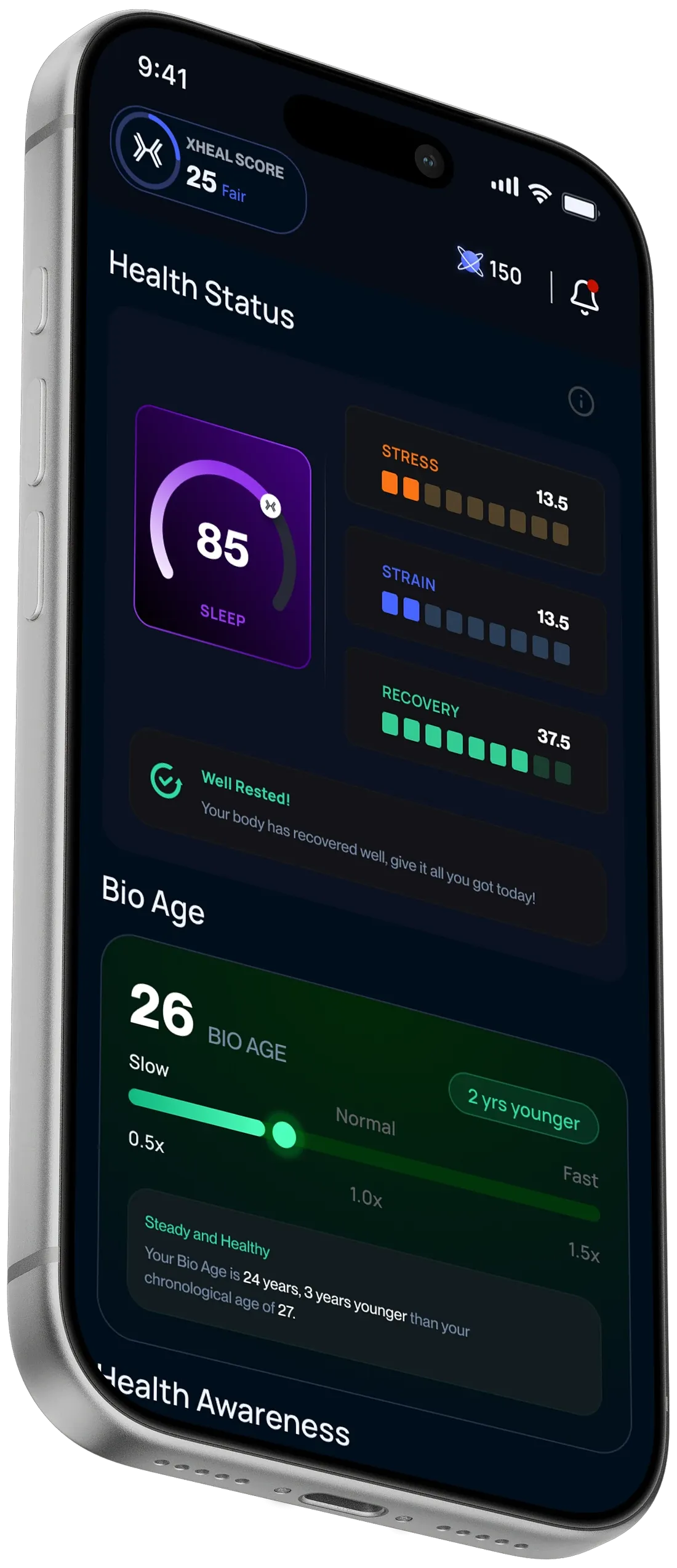
Dashboard Overview
Product documentation · xHeal team · Editorial update
For xHeal on iOS. Controls and availability can vary by app release; use the explanations and terms shown in your installed version.
Start with your daily picture
The dashboard brings together summaries and actions based on the information available in your profile. Cards and labels depend on your app release and connected sources.
Open the detail
Tap a summary to read its explanation and check the source dates. Missing information, an estimate and a measured value mean different things.
Health Awareness and readiness
Indicators can describe learning progress, available information or context for a daily activity. Do not assume that differently named indicators measure the same thing. Use the indicator guide and the explanation in your app.
Choose an action
Review your timeline, add a dated note, ask about a result or open the daily activities available to you. Start with one action that fits what you want to understand.
When something looks wrong
Check the original source and contact support if the app displays it incorrectly. A dashboard indicator is not a clinical assessment.