Provider Workspace · Appointments
Follow every booking through to the visit.
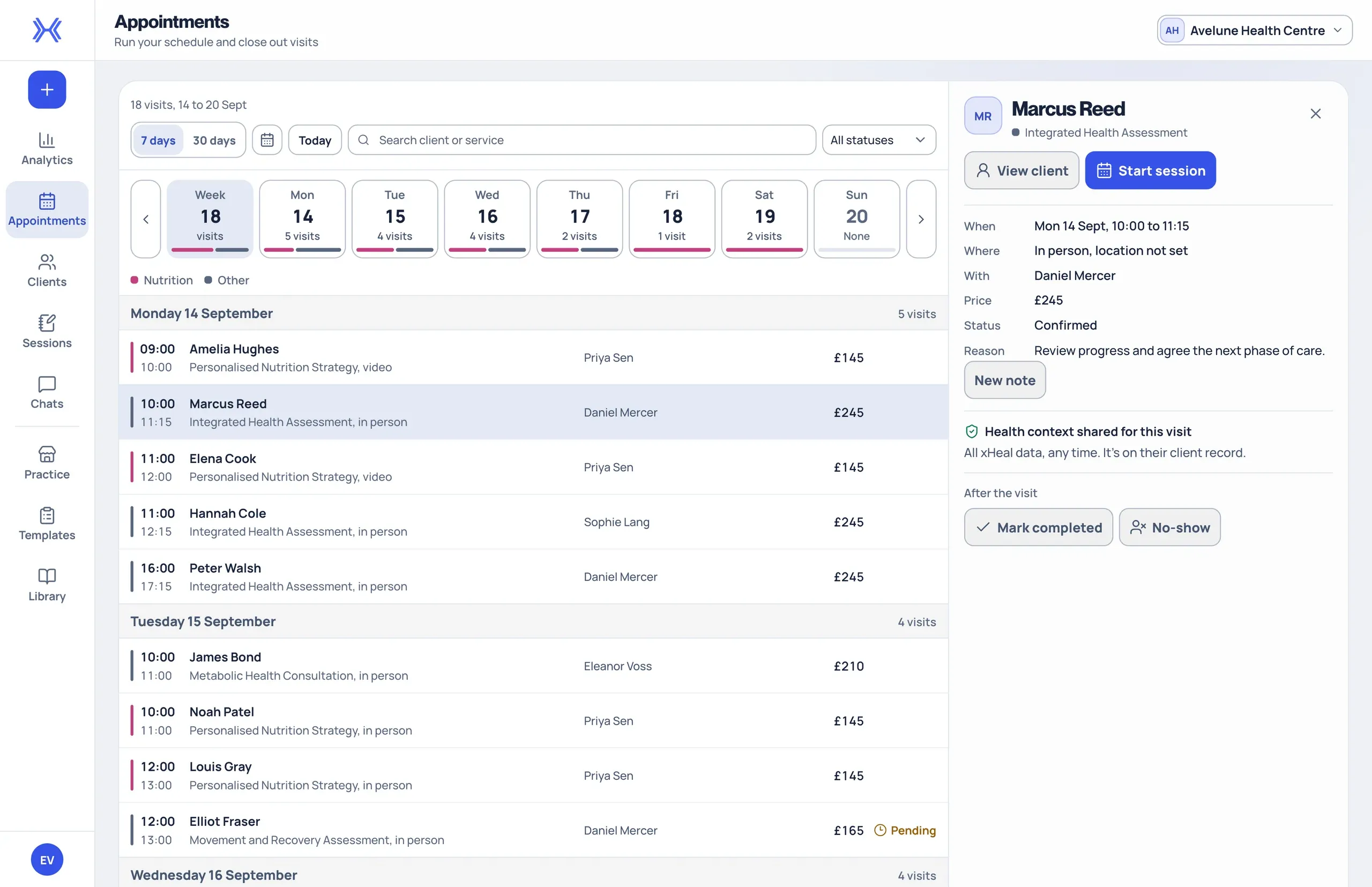
Appointments shows your practice's visits week by week. Open one to see when and with whom it is booked, its price and status, and whether the client has shared health context for it.
At a glance
A week of visits in view.
See the week's appointments by day, each with its client, service, practitioner and price.
Every detail of a visit.
Open a visit to check its time, practitioner, price and status before the client arrives.
Shared context, marked clearly.
See whether the client has shared health context for a visit. A booking on its own does not give access to health records.
From a confirmed booking to a completed visit.
Bookings made through your practice's booking link arrive in Appointments. From there, each visit leads to the client's record and to the session where you document it.
- 01
Review the week.
Open Appointments to review scheduled visits and their current status. Check the selected practice first, then open a visit to see its client, service, date, practitioner and price, and whether health context has been shared for it.
- 02
Open the client before you meet.
Move from the appointment to the client's record and check it is the right person. The record shows visits, key measures since the last visit, care goals and the clinical overview the client has shared.
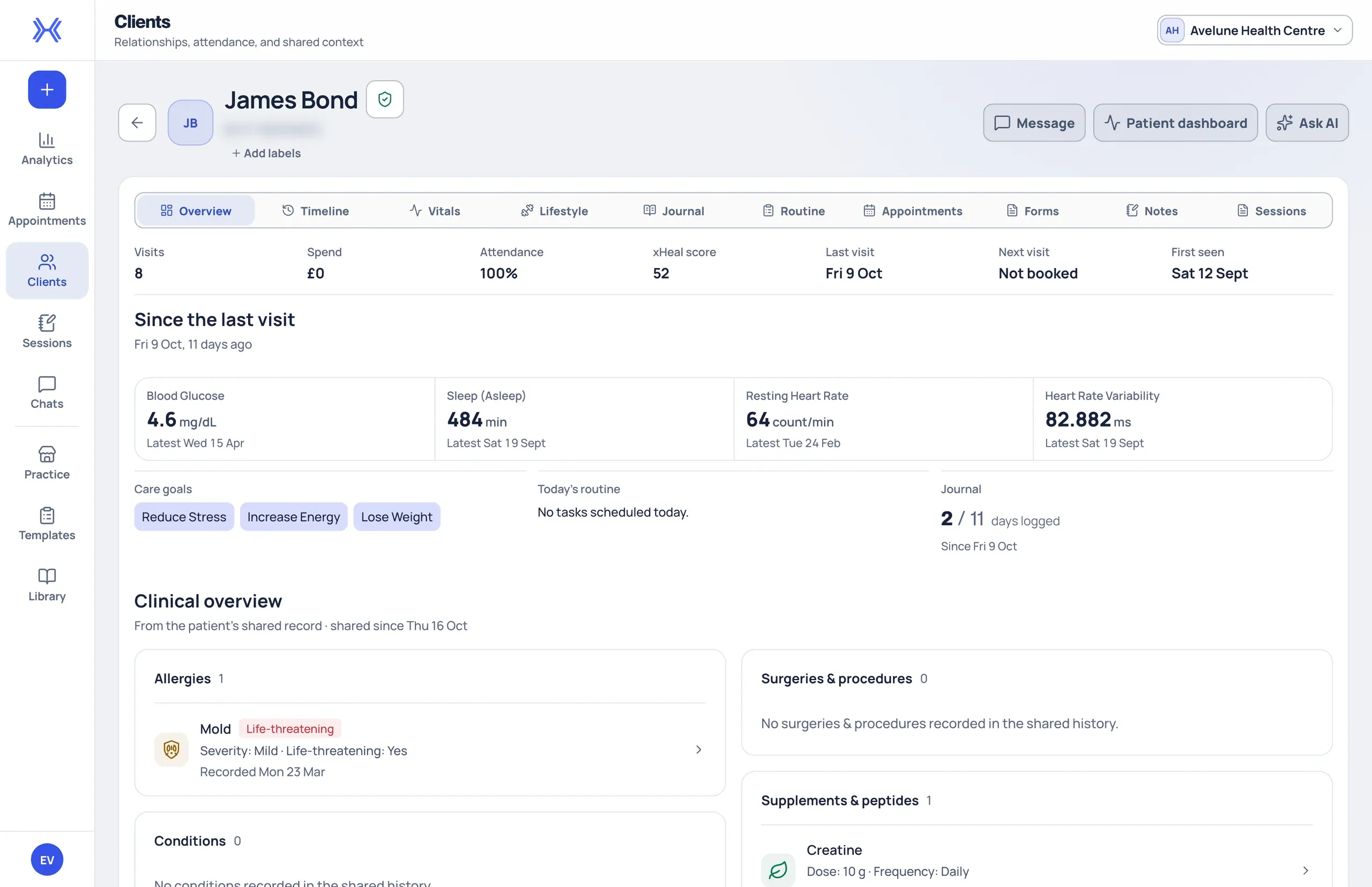
A client record in Provider Workspace, shown with fictional demonstration data. - 03
Document the visit in a session.
Start a session for the client and confirm who it is for before you write. Choose a note template if it helps, save the note, and reopen it from the client's session history to check the saved record.
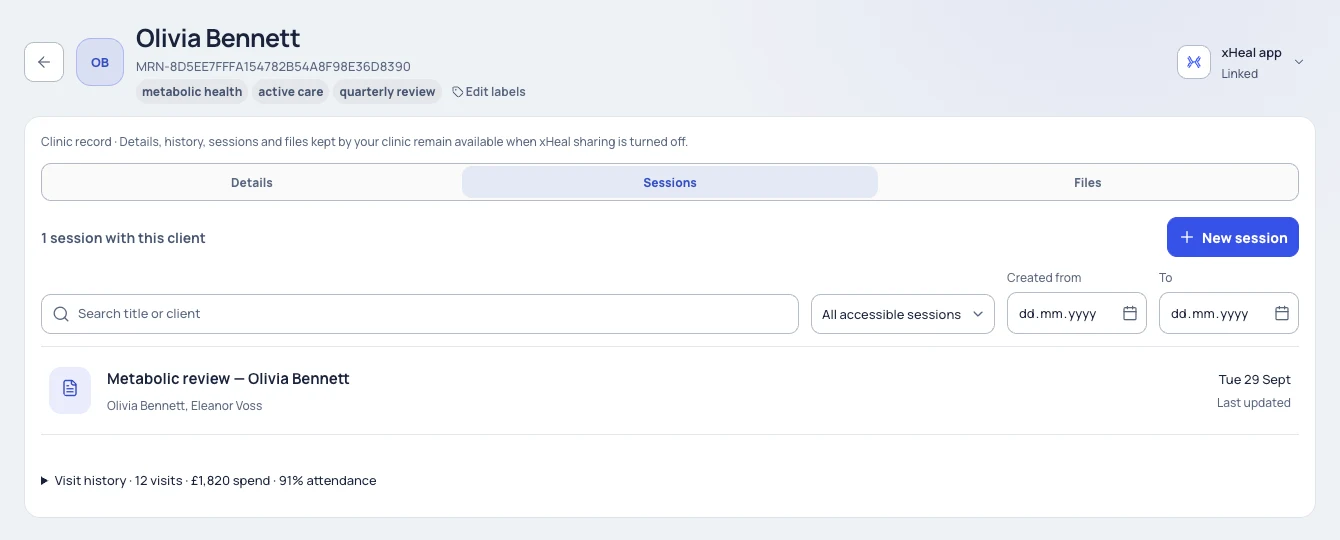
A client's session history, with New session for the next consultation. Fictional demonstration data.
What a visit shows.
When and with whom.
The visit's time, the practitioner the client is seeing, and the service they booked.
Price and status.
The listed price for the service and where the booking stands, from confirmation through completion.
Shared health context.
Whether the client chose to share health context for this visit. Availability reflects their sharing choice, not how complete their records are.
A route into analytics.
Analytics draws on your bookings and appointment statuses, so you can compare practice figures with the visits behind them.
What to know before you rely on it.
Appointment details and permission to view health records are handled separately. A visible appointment does not itself grant access to a client's health information.
Clients decide during booking whether to share health context, and can choose a narrower set of categories or dates than a service requests.
Appointment value in Analytics reflects listed prices for completed visits, not settled payments. Imported visit history, where present, is not a new booking and does not show current availability.
What you can see and change depends on your role. Provider Workspace sits alongside your clinical record system, not in place of it.
Questions
Before you book a demo.
Where do appointments come from?
Clients book the services your practice publishes in xHeal, for example through your practice booking link. The resulting visits appear in Appointments for your team to review.
Can every team member see a client's health information from an appointment?
No. Your team can access health information when the client has granted access through xHeal. Appointment details and permission to view health records are handled separately, and what each person sees also depends on their role.
Why does a visit say no health context was shared?
Sharing is the client's choice, made during booking. A visit without shared context reflects that choice, not missing records. You can still use the appointment, your clinic record and sessions.
How does this fit with our current software?
Use Provider Workspace for services, bookings, documents and shared health information alongside your clinical record system. We'll discuss your current tools and setup needs during the demo.
More of Provider Workspace
See it with your practice’s workflow.
Book a demo to walk through Provider Workspace and discuss how your team works today.
Book a Demo