Provider Workspace · Sessions & notes
Keep each consultation with the right client.
Start a session from the client's record, structure your note with a template your practice reuses, and keep the reports and files that belong to the visit with their profile.
At a glance
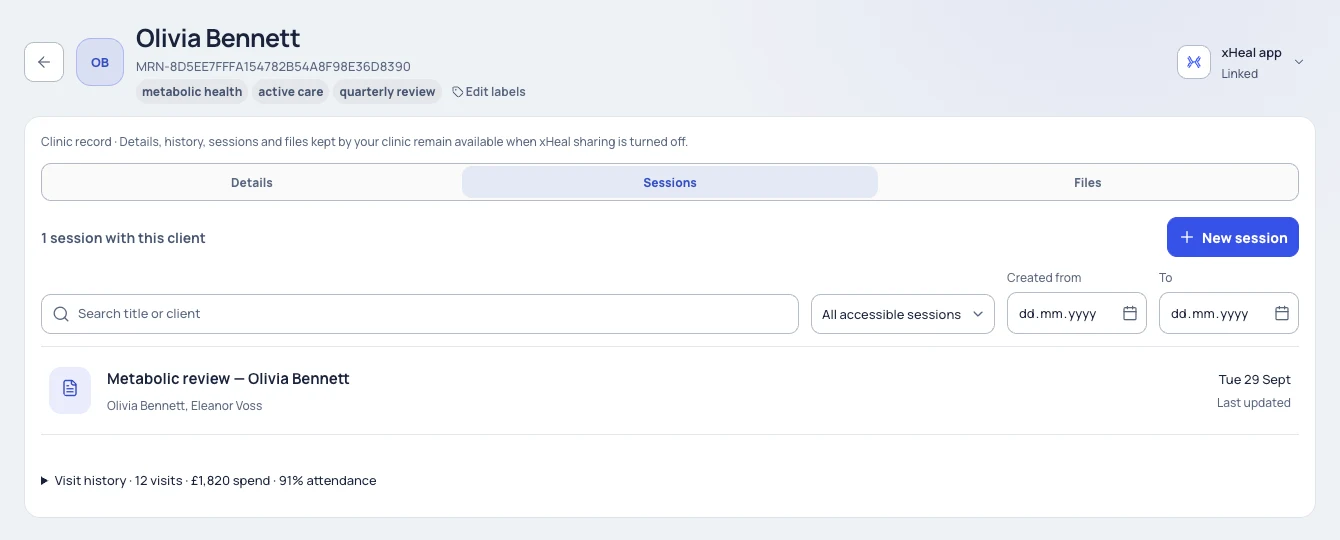
Sessions linked to the client.
Start a session from the client's record or from Sessions, and confirm the client before you write anything.
Reusable note templates.
Give consultations a consistent structure with headings and prompts your practice reuses, then fill in the facts for this visit.
Files kept with the record.
Upload PDFs to the client's clinic record and attach consultation material to the session it belongs to.
From an open record to a saved session.
Sessions holds consultation work, and every session belongs to a client. Work from the client's record so the note, its documents and its history stay together.
- 01
Start a session for the right client.
Open the client's record and review their existing sessions, or start from Sessions and select the client. Confirm you have the right person before entering consultation information, and keep any client context and documents shown alongside the session in view.
- 02
Choose a note template.
Templates holds your practice's reusable note structures. Name a template clearly, choose who can use it and add the headings and prompts your consultations need, keeping client-specific facts out of it. When you start a note, pick the template or begin with a blank editor, then replace the prompts with what happened in this visit.
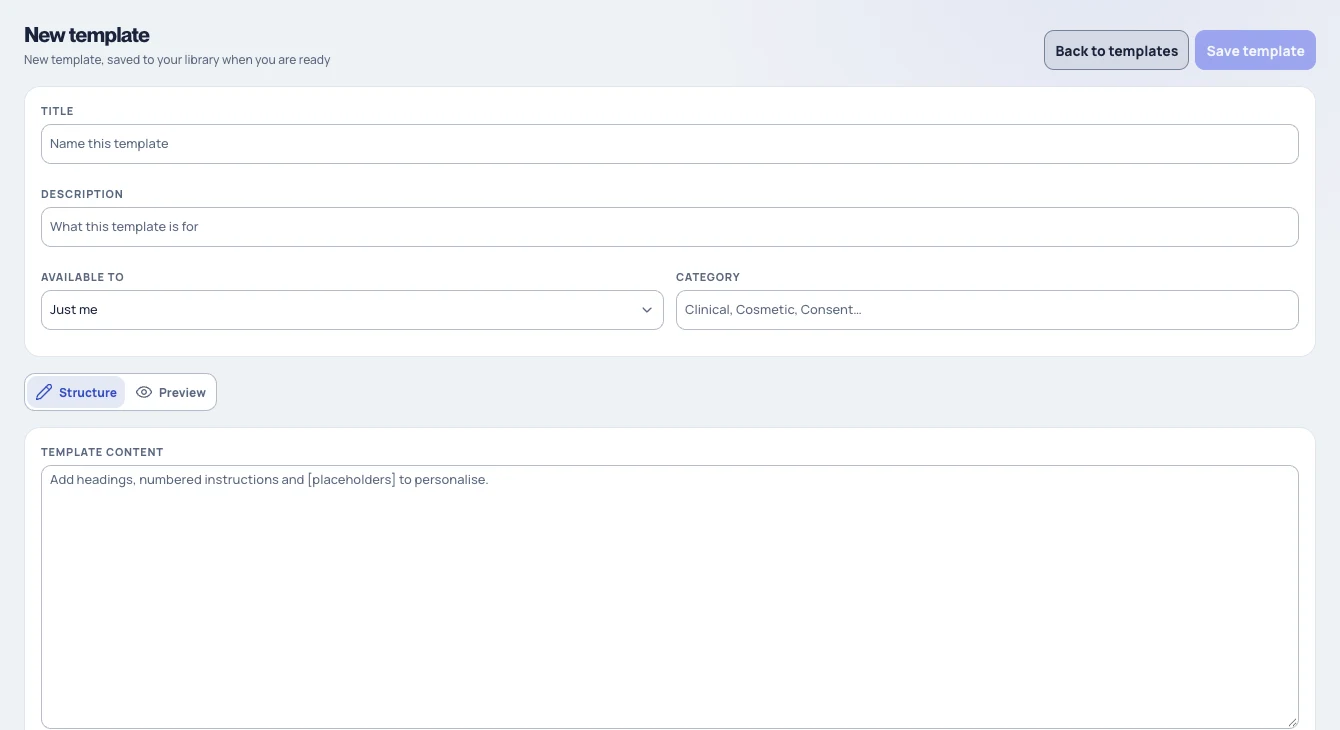
New template opens this editor, where you name the template, choose who can use it and add reusable headings or placeholders. Demonstration workspace; this example has not been saved. - 03
Save the record and check it.
Write the consultation note and watch the save state. Confirm names, dates and any copied information before you leave, then reopen the session from the client's history to check the saved record.
- 04
Keep documents in the right place.
Use Files on the clinic record for client-level PDFs: choose Upload PDF, search by name and open the preview to check the contents. For material from a particular consultation, use the session's document controls after checking the client and session.
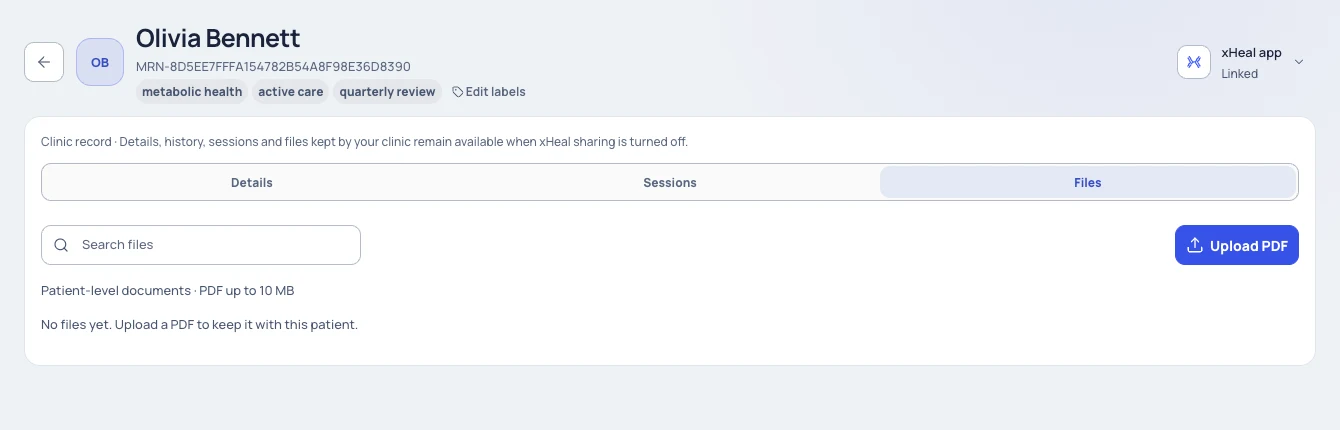
Files on the clinic record holds client-level PDFs of up to 10 MB. This demonstration record has no uploaded files yet.
Where each part of the record lives.
Sessions.
Each saved session is associated with its client and can be reopened from their session history for review.
Note templates.
Templates give your notes a shared structure. Each client's note stays specific to their visit.
Notes and forms.
Forms and note templates sit in the same Templates library. A form collects structured answers; a note template structures your own documentation.
Clinic files.
The client's Files tab accepts readable PDFs of 10 MB or smaller, not photos or other file types.
Shared xHeal documents.
Documents a connected client shares from xHeal appear in their document or timeline view, subject to their sharing choices. Uploading a clinic PDF does not add it to the client's own xHeal timeline.
Sharing a note.
Saving a note and sharing it with a connected client are separate actions. Review the exact content before you share.
What to know before you rely on it.
Provider Workspace sits alongside your clinical record system, not in place of it. It is not a clinical system of record, and xHeal does not diagnose, treat or make clinical decisions.
Navigation and editing controls depend on your role, so not every team member will see every session, template or file control.
Sessions, notes and files belong to your practice's clinic record. They are separate from the health information a client chooses to share, and revoking that sharing does not erase them.
Questions
Before you book a demo.
Does a client need an xHeal account before we can document a session?
No. Your practice can keep details, sessions and files in a clinic-managed record without an xHeal account or an email address, and invite the client to connect xHeal later.
Can we use our own note structure?
Yes. Create note templates with the headings and prompts your practice uses, choose who can use each one, and pick a template when you start a note.
What files can we keep with a client?
The client's Files tab accepts readable PDFs of 10 MB or smaller. Consultation-specific material can be attached through the session's document controls.
Does this replace our clinical record system?
No. Use Provider Workspace for services, bookings, documents and shared health information alongside your clinical record system. We'll discuss your current tools and setup needs during the demo.
More of Provider Workspace
See it with your practice’s workflow.
Book a demo to walk through Provider Workspace and discuss how your team works today.
Book a Demo