Provider Workspace · Team & roles
Run your workspace as a team.
Create one workspace for your practice, invite colleagues with the role they need and keep the roster current. Each member works in the practice they were invited to, with their assigned access.
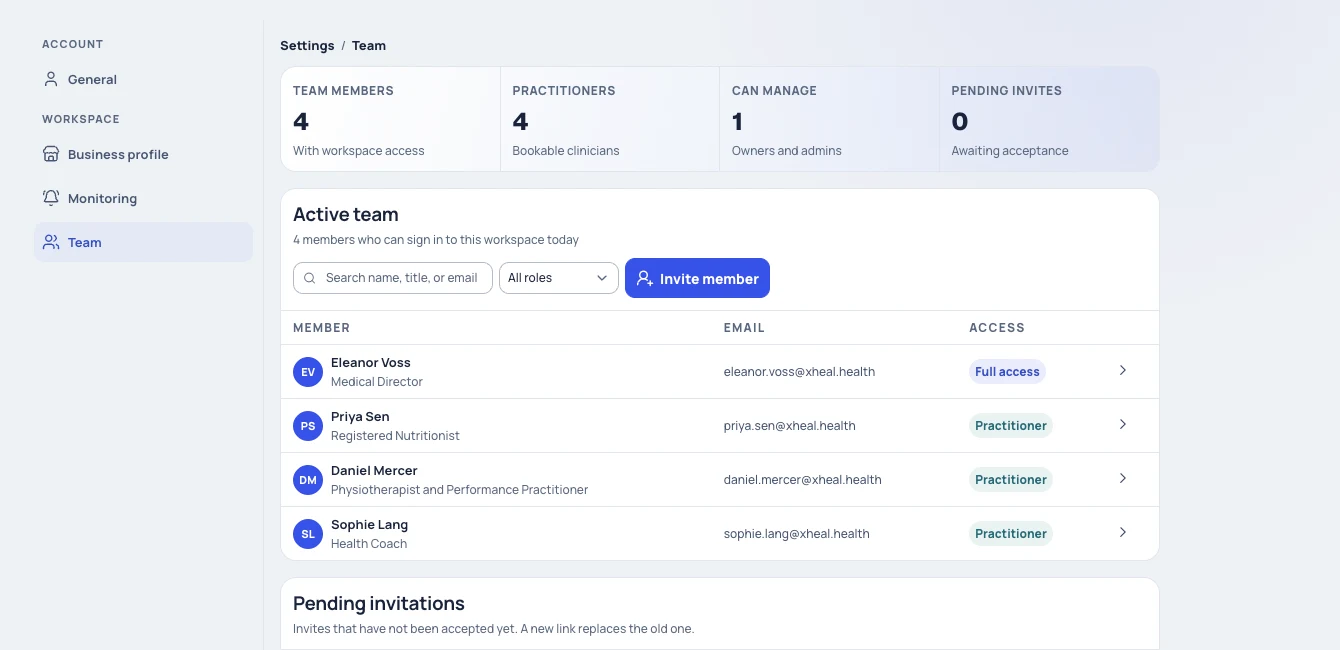
At a glance
One workspace for the practice.
A practice owner creates the workspace and works through setup: practitioner profile, locations, services and team. Steps can be skipped and completed later.
Invite colleagues with a role.
Invite a colleague by email, choose the role offered by the interface and review the access guidance alongside it.
Client sharing still applies.
A role sets what a team member can do in the workspace. Access to a client's health information depends on what the client chooses to share.
From a new practice to a working team.
Owners and administrators with team access set up the practice and invite colleagues. Invited team members join through their invitation rather than creating a workspace of their own.
- 01
Create your practice.
Register as a provider, create your practice and enter the business details requested. Check the practice name before continuing: it identifies the workspace your team will use. Then complete your practitioner profile and work through locations, services and team setup.
- 02
Invite your team.
Open your practice's team management view and review the existing roster first. Choose Invite member, enter the colleague's details and select their role. Pending invitations appear separately from colleagues who already have access, so you can follow up rather than invite the same person twice.
- 03
Colleagues join with their invitation.
An invited colleague opens the link, checks the practice name and signs in or registers with the intended account. They accept the invitation, complete their name and practitioner details, then open the workspace with their assigned access.
- 04
Review access and settings.
After a colleague accepts, check their profile, role and any service assignments. Each team member can adjust their own appearance and client-record layout in Settings, while some settings require administrative access.
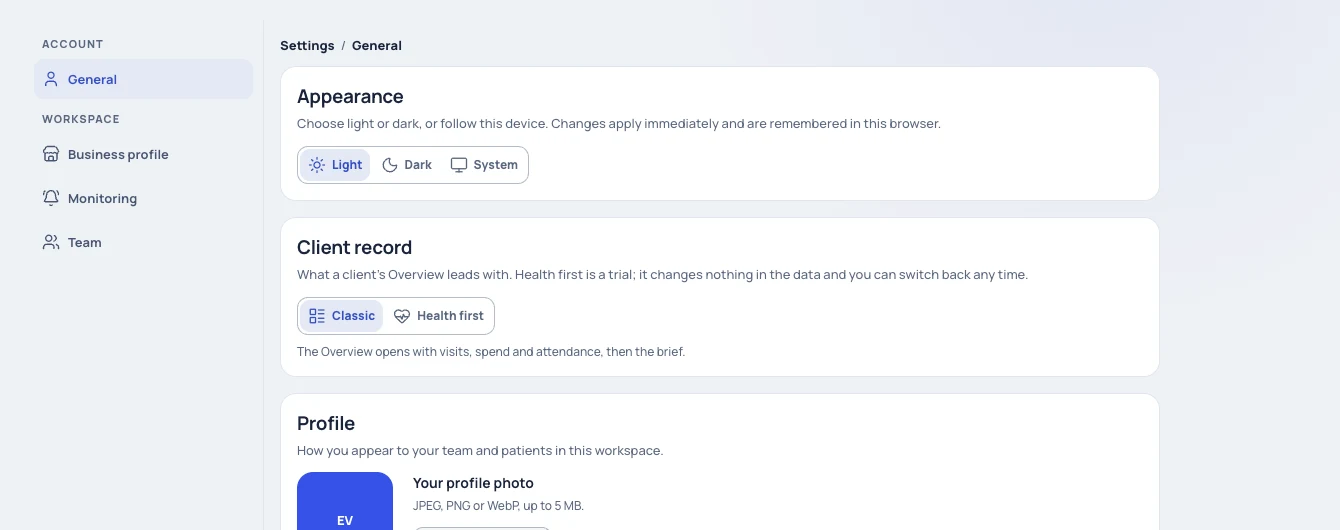
General settings: appearance and client-record layout. Fictional practice; demonstration data.
Good to know when working as a team.
Navigation follows your role.
The sections and editing controls a team member sees depend on their role. A missing administrative control does not mean the practice has no configuration.
Working across practices.
If you work in more than one practice, use the practice switcher, then check the workspace name before adding clients or changing settings.
Created is not accepted.
An invitation being created is different from being accepted. Use the pending invitation controls when a colleague cannot join, and check the destination email before replacing an invitation.
Keep booking details current.
Practitioner details and photos can appear in booking. Check them, and any service assignments, after a colleague joins.
Layout is a personal preference.
Classic and Health first change what the client overview leads with, not the underlying data. The choice is remembered in the browser where it was made.
What to keep in mind.
Practice membership does not override a client's sharing choices. Your team can access health information when the client has granted access through xHeal, and appointment details are handled separately from permission to view health records.
Available roles, sections and editing controls can differ by role. Ask an owner or administrator to review access if a colleague needs additional responsibilities.
Plan screens during setup are not evidence of a completed charge. Enterprise pricing is a custom per-seat price agreed with xHeal.
Provider Workspace sits alongside your clinical record system, not in place of it.
Questions
Before you book a demo.
What can my team see?
Your team can access health information when the client has granted access through xHeal. Appointment details and permission to view health records are handled separately, and what each member can do in the workspace depends on their role.
A colleague was invited but cannot join. What should we do?
Check the pending invitation and the email it was sent to. An expired or unusable invitation needs a replacement from the practice. If your colleague signed in with another account, they should return to the invitation with the intended account rather than create a new workspace.
Can I work in more than one practice?
Yes. If you belong to more than one practice, use the practice switcher to move between them, and check the workspace name before adding clients or changing settings.
How is the team priced?
With Enterprise, your practice pays a custom per-seat price. We'll discuss your team and setup needs during the demo.
More of Provider Workspace
See it with your practice’s workflow.
Book a demo to walk through Provider Workspace and discuss how your team works today.
Book a Demo