Provider Workspace · Practice analytics
Review bookings, revenue and capacity.
See operational trends derived from your bookings and appointment statuses. These figures describe practice activity, not clinical outcomes.
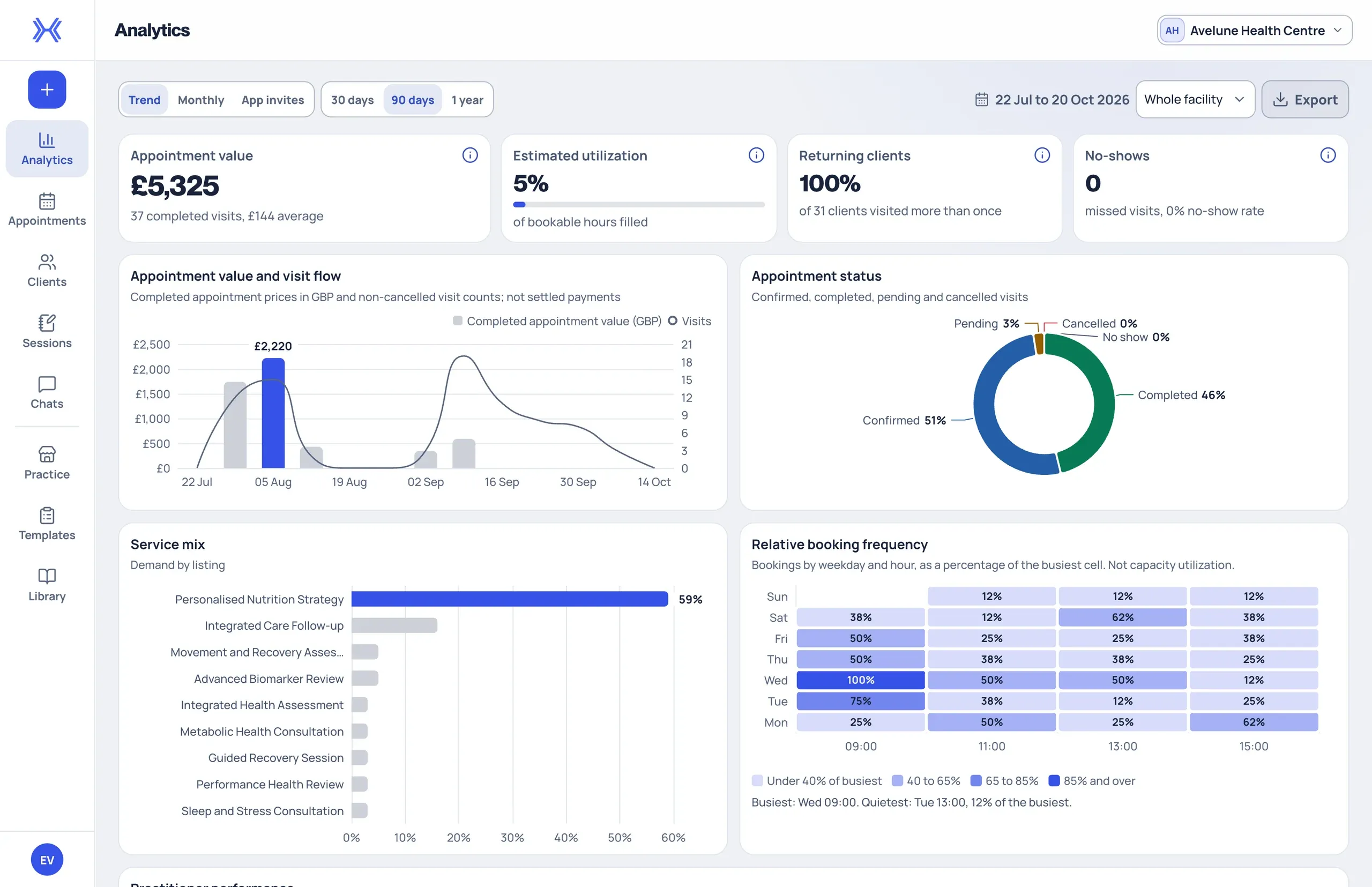
At a glance
Appointment value and visit flow.
Follow appointment value from completed visits alongside booked visits over the reporting period you select.
Capacity and utilisation.
See how much of your bookable capacity is booked, and when in the week your appointments tend to fall.
Returning clients and no-shows.
Review how many clients have visited more than once, and how many visits were missed rather than completed.
From a practice summary to the visits behind it.
Team members with appointment or analytics access can move from practice-level figures to the underlying visit information before drawing conclusions.
- 01
Choose the practice and period.
Open Analytics from the navigation rail and check that the intended practice is selected. Choose the available reporting period and check the practitioner scope above the figures.
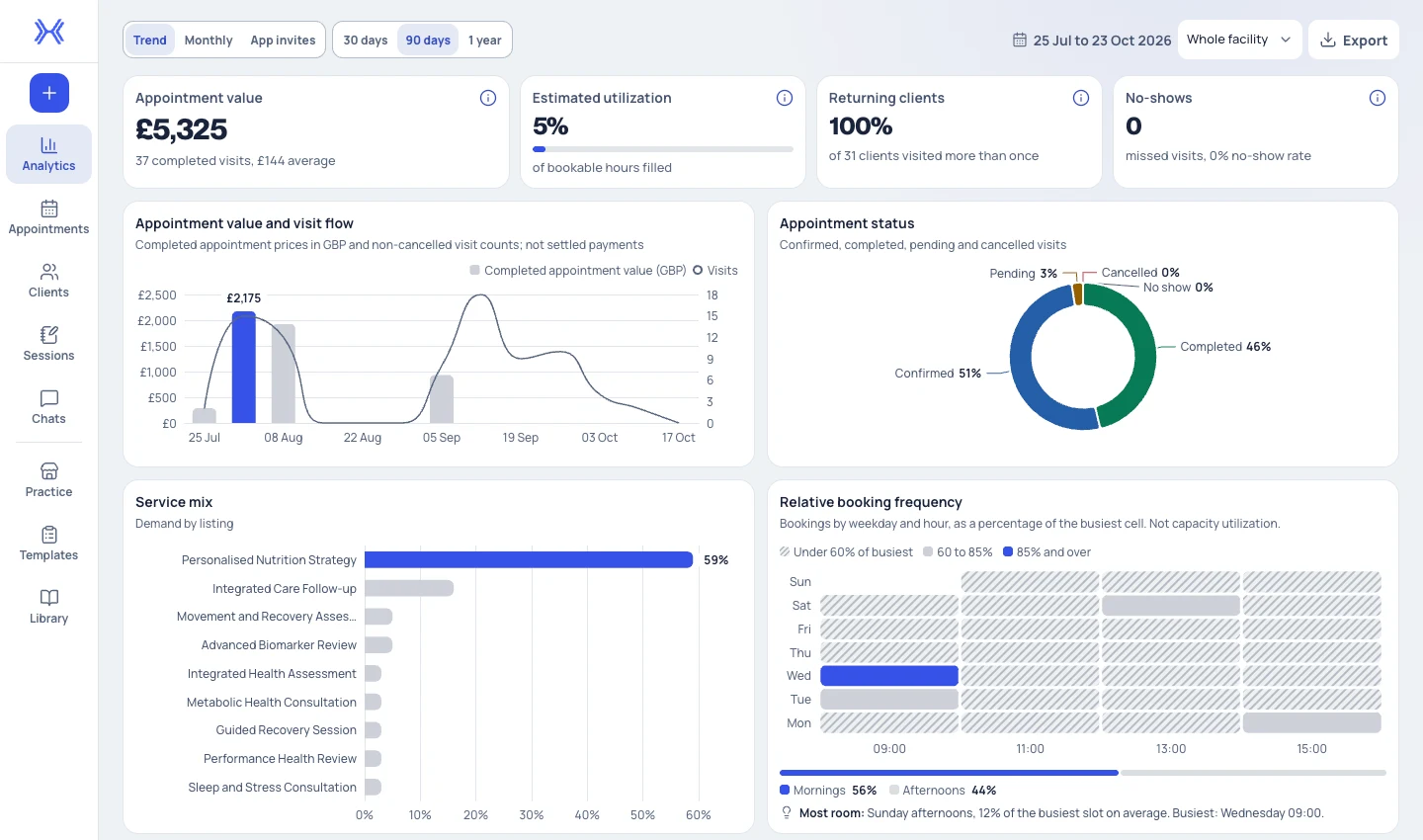
Analytics is selected in the left rail. Fictional practice; demonstration data. - 02
Read the definitions with the figures.
Each figure has a label and definition. Appointment value represents the listed prices of completed visits, not settled payments, so read the chart definitions alongside the totals.
- 03
Compare with the visits themselves.
Open Appointments to review scheduled visits and their current status, and open a visit to inspect its client, service and date. Compare summary figures with the relevant visits and services before drawing conclusions.
What the figures are based on.
Appointment value.
Based on the listed prices of completed visits. It is not a record of payments received.
Appointments.
Counts visits across appointment statuses, so you can see booking activity as well as completed work.
Utilisation.
Shows booked capacity: how much of the time your practice has made bookable is filled.
No-show rate.
Compares missed visits with completed and missed visits together.
Referral activity.
Where available, review your practice's referral link or code and the associated activity. Referral links are separate from booking and account-connection links.
What to keep in mind.
Analytics describes practice activity derived from bookings and appointment statuses. It does not measure clinical outcomes.
Appointment value reflects listed prices for completed visits, not settled payments. Provider Workspace sits alongside your clinical record system and existing tools, not in place of them.
What you can see depends on your role. If figures differ from what you expect, check the reporting period, the selected practice and your access.
Imported visit history, where present, is not a new native booking, and historical imported records do not establish current availability or upcoming appointments.
Questions
Before you book a demo.
Who in my practice can see analytics?
Team members with appointment or analytics access. Analytics shows practice-wide information, subject to each person's role.
Is appointment value the same as revenue received?
No. Appointment value represents the listed prices of completed visits, not settled payments. Read the definitions shown alongside each figure.
Why do the figures differ from what I expected?
Check the reporting period, the selected practice and practitioner scope, and your access role. Then compare the summary with the relevant visits in Appointments.
How does this fit with our current software?
Use Provider Workspace for services, bookings, documents and shared health information alongside your clinical record system. We'll discuss your current tools and setup needs during the demo.
More of Provider Workspace
See it with your practice’s workflow.
Book a demo to walk through Provider Workspace and discuss how your team works today.
Book a Demo