Provider Workspace · Messages
Reply to clients in the same place.
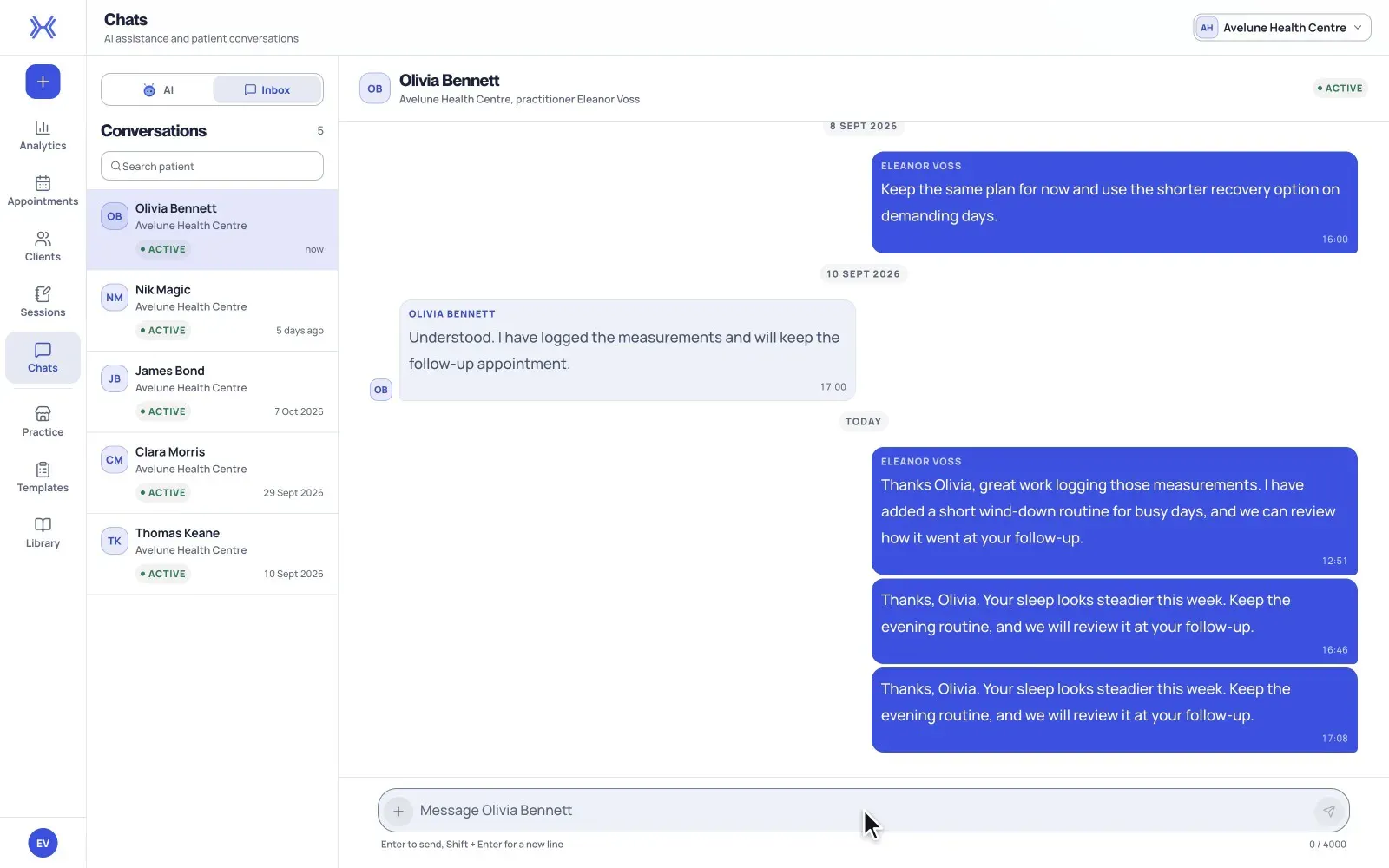
Reply to clients from the workspace, with the conversation history in view. Messages keep your conversations with clients next to their records.
At a glance
Conversation history in view.
Reply from the workspace with the earlier messages in the same thread in front of you.
Next to the client's record.
Your conversations with clients sit next to their records. Keep relevant consultation documentation in the client's record.
The right recipient.
Keep the recipient and conversation context in view, and check who you are writing to before you send.
From an open thread to a documented follow-up.
Decide whether you need a conversation or a structured answer, and check the client's connection. For a conversation, the messaging view lives in Chats.
- 01
Open the client's conversation.
Open the client messaging view in Chats. Complete any messaging activation prompts shown for your practice. Chats also holds xHeal AI conversations, which are separate from your messages with clients.
- 02
Check the recipient, then reply.
Keep the recipient and conversation context in view. Check you have the intended client before sending your message.
- 03
Review responses and keep the record.
Review the client's responses in the same thread. Keep relevant consultation documentation in the client's record rather than relying on the conversation alone.
Where messages fit.
Messages and xHeal AI are different conversations.
Both live in Chats. An AI chat asks questions about shared health context; a message is a conversation with a client.
Forms for structured answers.
When you need structured responses rather than a conversation, your practice can assign a form from Templates and review its status in the client's forms view.
For connected clients.
Messaging is for connected clients with the required feature access. If you cannot message a client, check their connection and the controls enabled for your practice.
What to know before you rely on it.
Messaging depends on the client's connection and on the controls enabled for your practice and your role, so availability can differ between clients and team members.
Check the recipient before every message. Your practice's own communication policies and consent arrangements still apply.
Messages support follow-up between visits; they do not replace your clinical judgement or your consultation record. Keep relevant documentation in the client's record.
Provider Workspace sits alongside your clinical record system, not in place of it. xHeal does not diagnose, treat or make clinical decisions.
Questions
Before you book a demo.
Where do client messages live?
In Chats. Open the client messaging view there, and complete any messaging activation prompts shown for your practice. AI chats in the same area are separate conversations.
Can I message every client?
Messaging is for connected clients with the required feature access. If a client cannot be messaged, check their connection and the controls enabled for your practice.
Should I use a message or a form?
Use a message for a conversation. When you need structured answers, assign a form from Templates and review its response status in the client's forms view.
How does this fit with our current software?
Use Provider Workspace for services, bookings, documents and shared health information alongside your clinical record system. We'll discuss your current tools and setup needs during the demo.
More of Provider Workspace
See it with your practice’s workflow.
Book a demo to walk through Provider Workspace and discuss how your team works today.
Book a Demo