Provider Workspace · Services & online booking
Give clients a way to book.
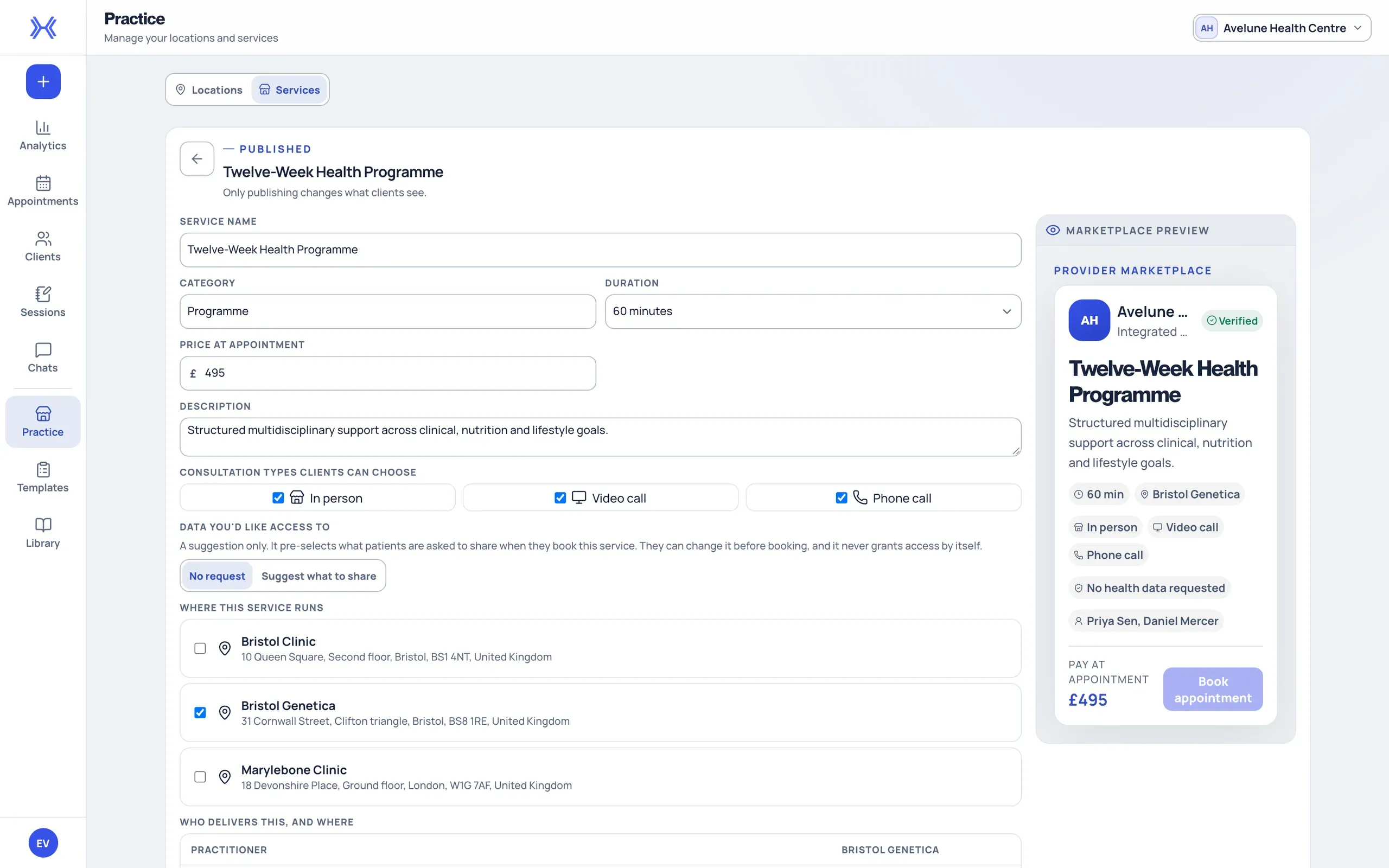
Publish your services so clients can choose their next appointment in xHeal. Each service describes the visit: how long it takes, what it costs and where it happens.
At a glance
Services clients can book.
Make your practice's services available for booking in xHeal, each with its own duration, price and location.
The right place and practitioner.
Choose which of your locations and practitioners offer each service, so clients see the options that apply.
A direct route to your practice.
Share your practice booking link on your website or in client communications, and follow the resulting visits in Appointments.
From your locations to a published service.
Owners and administrators with editing access set up where the practice works and what clients can book, then check the booking experience as a client would see it.
- 01
Add where you work.
Open Practice and add or review your locations. Check each name, address and contact details before saving. Each location card summarises its opening hours and assignments.
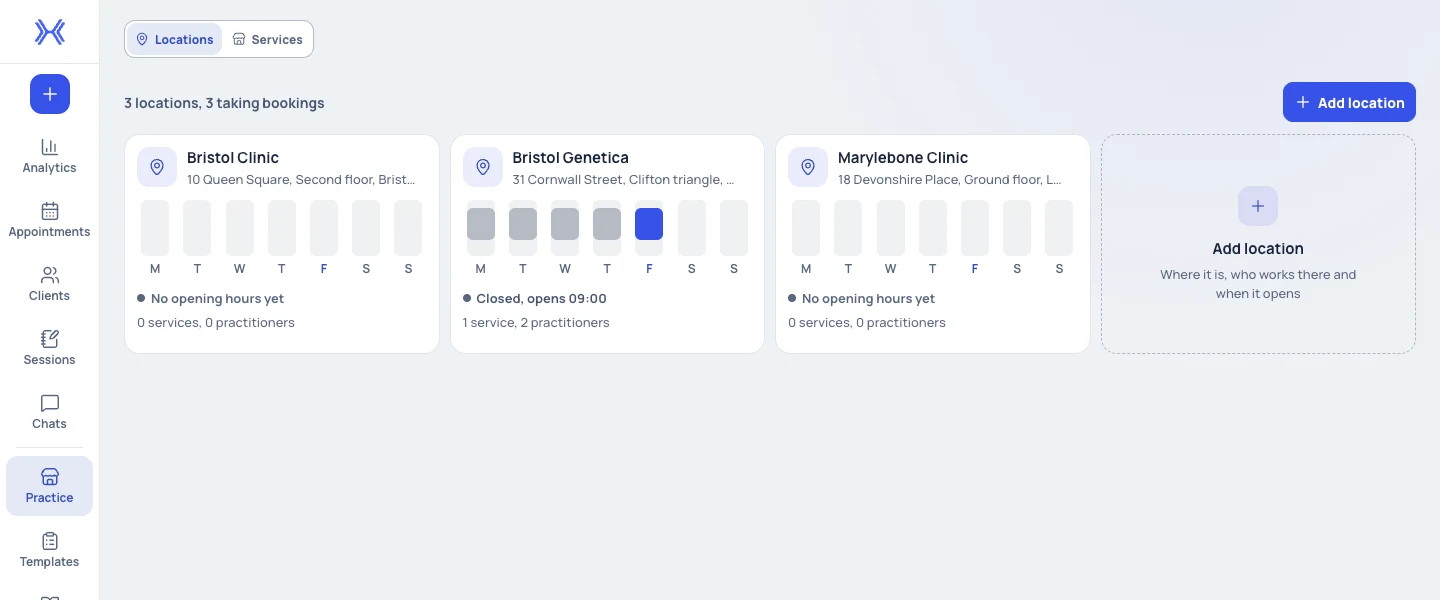
The Practice locations view, with Services in the same section. Fictional practice; demonstration data. - 02
Describe each service.
In Services, create or edit a service and complete the duration, pricing and other fields shown in the editor. Choose the locations and practitioners that offer it. If the service asks for health context, review the requested sharing categories and history window.
- 03
Check what clients will see.
Save the service and review its availability and published state. Then open the booking experience to check the service and location a client will see, as in the listing preview above.
- 04
Share your booking link.
Your practice booking link gives clients a direct route to the services, locations and practitioners you have published. Open it yourself first and check the practice identity and booking steps, then share it on your website or in client communications.
Good to know when setting up.
Part of practice setup.
When you create a practice workspace, setup takes you through locations, services and team. You can skip steps and complete them later.
Practitioner details appear in booking.
Keep practitioner details and photos current where they appear in booking, and check service assignments after a colleague joins.
Bookings arrive in Appointments.
Visits booked through your services appear in Appointments, where your team can follow them from confirmation through completion.
What to keep in mind.
A service's requested sharing is not the client's final consent. Clients choose what to share and from which date, and can choose a narrower set of categories or dates than the service asks for.
Editing locations and services depends on your role. Owners and administrators with editing access set them up.
A booking link and an invitation for a client to connect their xHeal account serve different purposes.
Provider Workspace handles services and bookings alongside your clinical record system, not in place of it.
Questions
Before you book a demo.
What can a service include?
A service has a duration, pricing and the other fields shown in the editor, plus the locations and practitioners that offer it. A service can also request health context, with the sharing categories and history window you want to ask for.
Do clients have to share health information to book?
No. Your practice can use services, appointments and documents whether or not a client shares health information. Where a service requests health context, the client still chooses what to share and from which date.
Why is a service missing from booking?
Check that the service is published and that its location and practitioner assignments are in place. Then open the booking experience again to confirm what a client will see.
How does this fit with our current software?
Use Provider Workspace for services, bookings, documents and shared health information alongside your clinical record system. We'll discuss your current tools and setup needs during the demo.
More of Provider Workspace
See it with your practice’s workflow.
Book a demo to walk through Provider Workspace and discuss how your team works today.
Book a Demo